
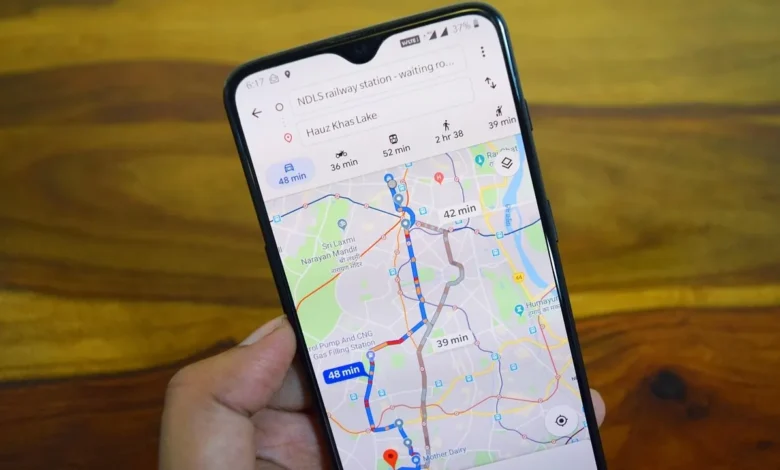
Navigating daily commutes, coordinating deliveries, and utilizing ride-sharing services have become fundamental components of modern urban life. Yet, millions of smartphone users worldwide continue to manually input their home addresses into navigation software each time they return from a journey or order a service. Despite the routine nature of these digital interactions, many fail to leverage existing platform functionalities designed to streamline location-based tasks. Google Maps, the world’s leading digital mapping service, offers robust customization features that allow users to permanently save primary locations, such as home and work addresses, into their profiles. By establishing a designated home location within the application, users can drastically reduce navigation friction, substituting manual entry with a single tap or voice command. This comprehensive guide details the technical procedures required to save, edit, and manage residential locations across various devices, highlighting the broader integration of location data within the broader Google ecosystem.
The Architectural Integration of Google Maps and Account Settings
To understand the mechanics of saving a home address, users must first recognize how Google Maps interacts with personal Google Accounts. The mapping service does not merely store location data locally on a single device; rather, it anchors primary destinations to the user’s centralized account infrastructure. This interconnectedness ensures that a residential address saved on an Android smartphone, an iPhone, or a desktop web browser synchronizes seamlessly across complementary Google services, including Google Assistant, Google Search, and the Google Chrome browser’s auto-fill functionalities.
Industry data from major technology analysts indicates that location-based applications handle billions of queries daily, with residential and workplace coordinates representing the vast majority of frequent destinations. By linking a home address directly to a Google profile, users minimize data entry redundancies. When a user requests directions to "Home," the application bypasses the geocoding phase—the computationally intensive process of converting a human-readable street address into geographic coordinates—and immediately plots the optimal route based on real-time traffic analytics.
Step-by-Step Procedures for Saving a Home Address
The implementation of saved locations can be executed through multiple pathways depending on the user’s preferred operating system and hardware configuration. Industry best practices suggest utilizing either the centralized account settings for ecosystem-wide synchronization or the native application labels for rapid deployment within the mapping interface.
Method 1: Configuring Primary Addresses via Account Settings on Android
For Android device owners, utilizing the device settings menu guarantees that the residential address propagates across all applications tied to the primary Google profile. The sequential workflow is structured as follows:
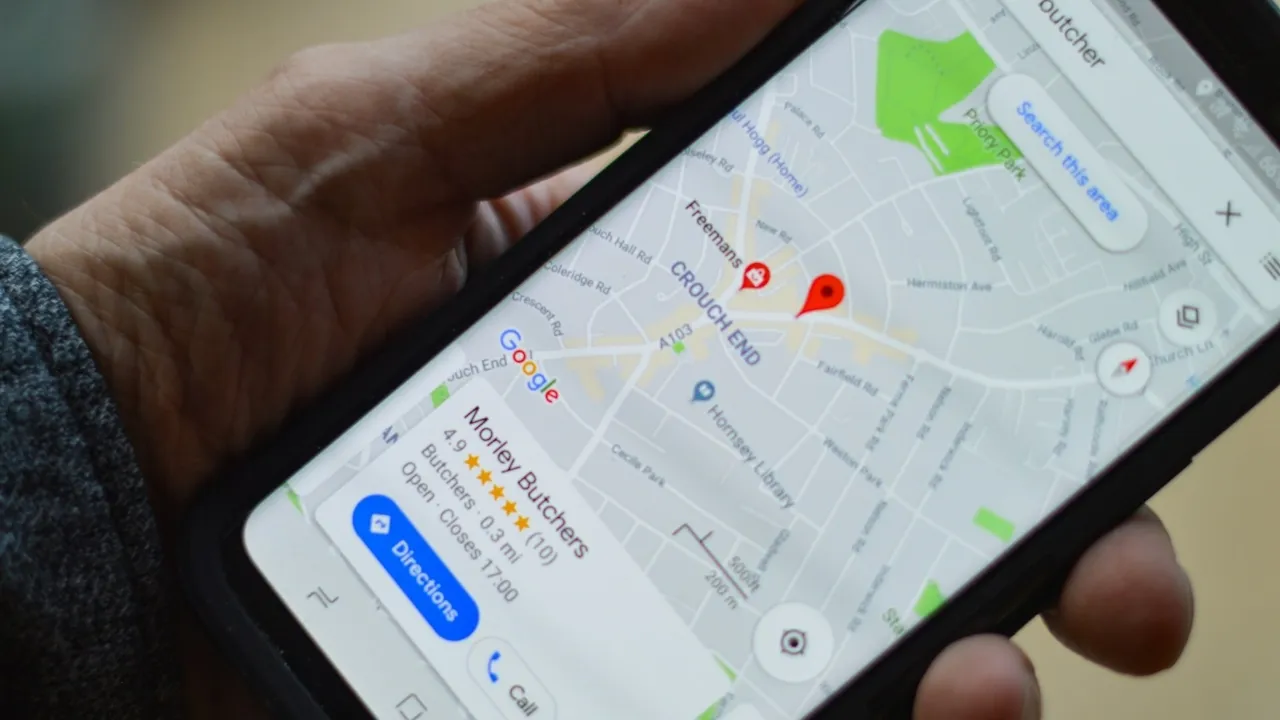
- Access the system settings application on the Android device.
- Navigate to the Google services category and select "Manage your Google Account."
- Access the "Personal info" tab to review account-level data points.
- Locate and select the "Home address" or "Work address" configuration fields.
- Input the comprehensive residential data, ensuring the inclusion of street names, building or house numbers, postal codes, and municipal districts.
- Confirm and execute the storage command by tapping "Save."
Once verified, this data points directly to the user’s profile database, instantly empowering Google Assistant to process voice commands such as "Navigate me home" without requiring secondary verification.
Method 2: Utilizing the "Labeled" Feature Within Google Maps
For users seeking a localized deployment or operating within iOS environments where direct Google Account settings integration may vary, Google Maps provides a dedicated structural slot known as "Home" within its native labeling architecture. This persistent placeholder remains available regardless of whether data has been previously inputted.
- Launch the Google Maps application on the mobile device.
- Select the "Saved" tab located within the bottom navigation bar.
- Access the "Labeled" category to view pre-configured location slots.
- Identify the designated "Home" slot within the list and select it.
- Enter the specific residential address into the search bar, or utilize the interactive map interface via "Choose on map" to physically pin the exact geographic coordinates. Alternatively, link an existing contact card via "Choose from contacts."
- The application automatically commits the selection to memory, finalizing the designation without requiring manual confirmation.
If a pre-existing home address requires modification, users can access the options menu represented by the three-dot icon adjacent to the "Home" label and select "Edit home." This action reopens the spatial query interface, permitting immediate updates across both Android and iOS operating systems. Furthermore, users can establish secondary custom labels—such as parental residences, academic institutions, or workspaces—by long-pressing any precise coordinate on the map interface and assigning a bespoke text label.
Method 3: Managing Primary Locations via Desktop Browsers
For professionals and remote workers operating primarily from personal computers or workstations, managing digital maps through a web browser offers a streamlined administrative experience. The desktop workflow mirrors the account-level integration found on mobile operating systems, ensuring cross-platform consistency.
- Open a preferred web browser and authenticate the active Google session.
- Navigate to the centralized account portal at myaccount.google.com.
- Click on the "Personal info" tab situated within the primary navigation pane.
- Select the "Home address" or "Work address" parameter.
- Enter the complete spatial and municipal data into the input fields.
- Execute the save command to update the cloud-based registry.
Alternatively, users can access maps.google.com directly, click on the "Saved" menu on the top-left panel, select "Labeled," and manually input or adjust their primary residential parameters from a desktop environment.
Modifying, Updating, and Deleting Saved Data
Geographic mobility is an inherent characteristic of modern populations, frequently necessitating the adjustment of primary digital landmarks. Relocating to a new residence does not require the creation of a new user profile or the cumbersome deletion of existing application data. Google Maps accommodates lifestyle transitions through dynamic editing protocols.

To update an address, users must access the personal info parameters via account management portals or mobile application settings, clear the obsolete street data, and input the newly acquired residential information before saving. Conversely, if a user wishes to completely eradicate a saved location from their digital footprint, selecting the "Remove" option within the home address configuration immediately purges the coordinates from the active profile registry, returning the "Home" slot to an unassigned state.
For custom labels established directly within the mapping application, modifications require accessing the "Labeled" directory under the "Saved" tab, selecting the specific label, and redefining the associated geographic pin or text identifier.
Security, Privacy, and Troubleshooting Considerations
As digital mapping services increasingly integrate personal data into daily workflows, questions regarding data privacy and system reliability remain paramount. Cybersecurity analysts emphasize that primary location data—specifically home and work addresses—represents sensitive personal information. Google maintains strict encryption standards for stored location profiles, ensuring that designated home and work coordinates remain private and inaccessible to third parties or the public, unless explicitly shared through specialized location-sharing features.
Technical friction occasionally prevents addresses from saving correctly. Common diagnostic indicators include disconnected user accounts, outdated application versions, or disabled device activity controls. If Google Maps fails to retain a home address, users must verify that their primary Google account is actively synchronized with the application and confirm that the "Web & App Activity" setting is enabled within their privacy dashboard. Without active activity logging, personalization features necessary for persistent location storage may be restricted by system protocols.
Implications of Streamlined Location Management
The integration of permanent location markers within digital mapping tools yields measurable efficiency gains in daily logistics. By eliminating repetitive data entry, users conserve incremental amounts of time that accumulate significantly over months of regular commuting and service utilization. Furthermore, precise geographic labeling reduces logistical errors for courier services, emergency responders, and transportation networks that rely on accurate digital mapping infrastructure. As artificial intelligence and location-based algorithms continue to evolve, the foundational practice of saving primary addresses serves as a critical stepping stone toward fully optimized, automated urban mobility.