

Smartphones, indispensable companions in the digital age, occasionally present a perplexing issue: refusing to power on even when connected to a charger and seemingly receiving power. This frustrating predicament, often leading users to assume a catastrophic failure, can stem from a variety of underlying causes, ranging from simple software glitches to complex hardware malfunctions. Understanding these potential culprits is crucial for diagnosing the problem and determining the most effective course of action, whether it involves a simple home remedy or a trip to a professional repair center. The ubiquitous nature of these compact devices, which have transcended their initial role as mere communication tools to become central hubs for work, entertainment, banking, and countless other daily activities, underscores the urgency and impact of such a malfunction on a user’s life.
The Indispensable Role of Modern Smartphones and the Impact of Failure
In the contemporary global landscape, the smartphone has evolved from a luxury item to an essential utility, akin to electricity or running water for many. Its integration into nearly every facet of personal and professional life makes its sudden incapacitation a significant disruption. From managing complex work schedules and participating in virtual meetings to accessing critical financial services, navigating unfamiliar territories, and maintaining social connections, the capabilities packed into these handheld devices are staggering. A smartphone outage can translate directly into lost productivity, missed opportunities, and profound inconvenience. This heightened reliance necessitates a deeper understanding of device longevity, maintenance, and common failure points, particularly those that manifest as a device refusing to boot despite indicating it is charging. The psychological impact of being disconnected, often referred to as "nomophobia," further accentuates the need for rapid diagnosis and resolution of such technical issues.
Decoding the Core Problem: Power On vs. Power Input
The primary confusion arises because a phone showing a charging indicator (e.g., a battery icon or LED light) often leads users to believe that power is flowing correctly and the battery is accumulating charge, thus the phone should turn on. However, the charging circuit and the power-on circuit are distinct, albeit interconnected, systems. Power may successfully enter the device and even reach the battery, but if any critical component in the boot sequence or power management system is compromised, the phone will remain unresponsive. This nuanced distinction is key to comprehending why a device might appear to be charging yet refuse to come to life. The diagnostic process, therefore, must consider both the integrity of the power input mechanism and the functional status of the device’s internal components responsible for initiating and sustaining operation.
Common Culprits Behind a Non-Responsive, Charging Smartphone
Several factors, ranging in severity and ease of repair, typically contribute to a smartphone failing to power on despite receiving a charge. Each scenario requires a specific approach, and understanding them helps users make informed decisions.
1. Severely Degraded or "Dropped" Battery
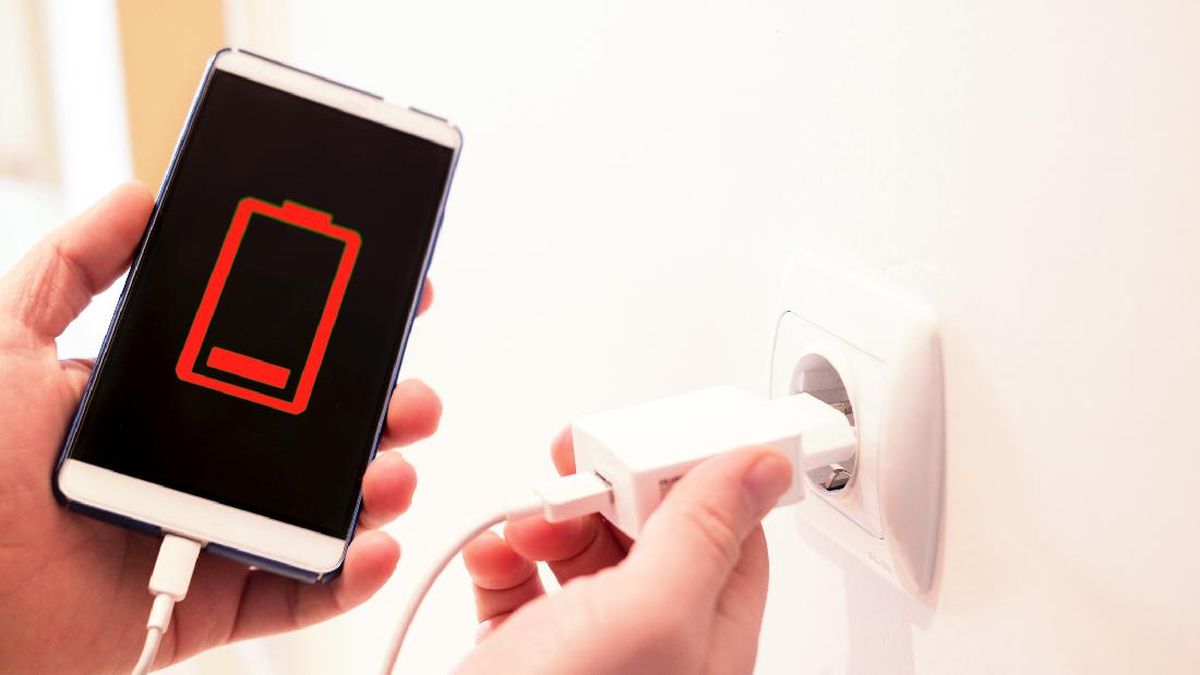
One of the most frequent causes is a battery that has significantly degraded or "dropped" below a critical voltage threshold. Lithium-ion batteries, standard in most smartphones, naturally lose capacity and efficiency over time and through charge cycles. A "dropped" battery might still accept a trickle charge, causing the charging indicator to light up, but it lacks the necessary voltage or current output to initiate the boot sequence. Modern smartphones require a certain minimum voltage to even begin the power-on process, a threshold a heavily degraded battery may no longer be able to reach or maintain under load.
- Underlying Mechanism: Lithium-ion batteries degrade due to chemical changes, leading to increased internal resistance and reduced charge retention. Each full charge-discharge cycle contributes to this degradation. Over time, the electrolyte breaks down, and the electrodes lose their ability to store and release lithium ions efficiently.
- Contributing Factors to Rapid Degradation:
- Extreme Temperatures: Exposing a phone to very high or very low temperatures (e.g., leaving it in a hot car, charging it in direct sunlight) significantly accelerates battery aging.
- Overcharging/Deep Discharging: While modern phones have protection circuits, consistently leaving a phone plugged in at 100% or allowing it to fully drain to 0% before recharging can stress the battery. Studies indicate that maintaining a charge between 20% and 80% can extend battery lifespan.
- Incompatible Chargers/Cables: Using non-certified or low-quality chargers can deliver unstable voltage or current, damaging the battery’s charging control circuitry or the battery itself. Rapid charging, while convenient, also generates more heat, which can stress the battery if not properly managed by the device’s thermal controls.
- Simultaneous Heavy Usage While Charging: Playing graphically intensive games or running CPU-demanding applications while charging generates considerable heat, which is detrimental to battery health. This practice often leads to accelerated degradation, as the battery is simultaneously being charged and discharged, all while operating at elevated temperatures.
- Symptoms: The phone may briefly show a manufacturer logo or a blank screen before shutting down again, or it might simply remain completely unresponsive despite the charging light.
- Statistical Context: According to various industry reports, smartphone batteries typically retain about 80% of their original capacity after 300-500 charge cycles, which for an average user translates to about 1.5 to 2 years of optimal performance. After this point, degradation often becomes more noticeable, leading to issues like sudden shutdowns or an inability to power on from a low charge state.
2. Damaged Power Button
A physically damaged or malfunctioning power button is another surprisingly common cause. Even if the battery is fully charged and all internal components are operational, a faulty power button prevents the electrical signal from reaching the system that initiates the boot process.
- Mechanism of Failure: Power buttons are mechanical components subjected to repeated physical stress. Over time, the internal switch mechanism can wear out, become sticky, or break. External factors like liquid damage, dust ingress, or physical impact (e.g., dropping the phone on its side) can also compromise the button’s integrity.
- Symptoms: The button may feel loose, unresponsive, or stuck. There might be no tactile click when pressed. The phone will remain dark, even if it vibrates or makes sounds when connected to a charger, indicating other parts of the system are alive.
- Troubleshooting: In some cases, if the phone is connected to a charger, it might automatically power on, or certain devices allow booting into recovery mode without the power button (e.g., by pressing volume down + home button simultaneously for older Samsung models). However, these workarounds are often device-specific.
- Repair Considerations: Repairing a power button typically involves replacing the flex cable assembly that houses the button. This can be a relatively straightforward repair for experienced technicians but requires disassembling the device, which carries risks for an untrained individual.
3. System Freeze or Software Crash
A software-related issue, such as a severe system freeze or a complete operating system crash, can make the phone appear dead. In these scenarios, the hardware itself is functional, and power may be flowing, but the operating system is unresponsive, preventing the device from booting normally.
- Causes:
- Corrupted Software Updates: An interrupted or failed software update can leave the operating system in an unbootable state.
- Malicious or Buggy Applications: Certain applications, especially those from untrusted sources or those that are resource-intensive and poorly optimized, can cause system instability, leading to crashes.
- Insufficient Memory/Storage: Running too many applications simultaneously or having extremely low internal storage can lead to performance degradation and system freezes.
- Malware/Viruses: Malicious software can corrupt system files or consume excessive resources, causing the device to become unresponsive.
- Overheating: Prolonged heavy usage or operating in a hot environment can cause the phone’s internal temperature to rise, leading to thermal throttling or a system shutdown to prevent hardware damage. If the system crashes during this process, it might not restart.
- Symptoms: The phone may display a frozen logo, a black screen, or endlessly loop through the boot animation. It might still vibrate, ring (if calls come in), or show charging indicators, but the user interface remains inaccessible.
- Solutions:
- Force Restart/Hard Reset: This is the most common first step. It involves holding down specific button combinations (e.g., power + volume down for 10-20 seconds) to force the device to shut down and restart, bypassing the frozen software state. This is often successful in resolving temporary software glitches.
- Boot into Safe Mode: Some Android devices allow booting into "Safe Mode," which loads only essential system applications, allowing users to identify and uninstall problematic third-party apps.
- Factory Reset (via Recovery Mode): If a force restart doesn’t work, a factory reset might be necessary. This erases all user data and reinstalls a fresh version of the operating system. This is a last resort as it results in data loss if not backed up.
- Flashing Firmware: In more severe cases of software corruption, a professional might need to re-flash the device’s firmware using specialized tools.
- Preventative Measures: Regular software updates, careful app selection, avoiding suspicious downloads, and managing background processes can significantly reduce the risk of system freezes.
4. Dead Display (but Active Internals)
A seemingly dead phone might actually have its internal components, including the processor and battery, fully operational, but the display panel itself is malfunctioning. This can create the illusion that the entire device is unresponsive.
- Display Components and Failure Points: The display system comprises the LCD/OLED panel, the digitizer (touch-sensitive layer), the display flex cable, and the display driver integrated circuit (IC) on the motherboard. Failures can occur in any of these.
- Physical Damage: Cracks, severe impact, or pressure can damage the delicate display panel or its underlying circuitry.
- Liquid Damage: Water or other liquids can short circuit the display’s connections or corrode the flex cable.
- Flex Cable Issues: The flexible ribbon cable connecting the display to the motherboard can become loose, torn, or damaged, severing the connection.
- Display Driver IC Failure: A malfunction in the display driver chip on the motherboard can prevent any image from being generated.
- Confirming a Live Phone with a Dead Screen:
- Vibration Feedback: The phone might still vibrate when powered on, receive notifications, or when interacting with the touchscreen (if the digitizer is still functional).
- Audible Notifications/Ringtones: If someone calls, the phone might ring or vibrate.
- Connecting to a Computer: Plugging the phone into a PC might result in the computer recognizing the device, allowing access to files (if unlocked) or indicating a functional connection.
- Backlight Test: In a dark room, observe if there’s any faint glow or change in the screen when attempting to power on, suggesting the backlight is trying to activate.
- Repair Considerations: Display replacement is one of the most common and often expensive smartphone repairs, especially for premium devices with OLED panels. The cost can vary significantly depending on the device model and whether original or aftermarket parts are used.
5. Malfunctioning Power Management IC (PMIC) or Motherboard Issues
The Power Management Integrated Circuit (PMIC) is a critical component on the smartphone’s motherboard responsible for regulating and distributing power to all other components. A fault in the PMIC or other crucial motherboard components can lead to a phone that appears to charge but cannot boot.
- Role of the PMIC: The PMIC acts as the "brain" of the power system. It manages charging, voltage regulation
Related posts: